

Vital task of any company is an established process of interaction and settlements with suppliers. The timeliness and quality of Accounts payable work directly affects the quality of the goods that will be delivered to customers in the future. Companies want to receive high-quality services or well-manufactured goods within the specified timeframe. Demanding these conditions from the supplier we must be mindful of our obligations and timely payment.
To maintain purchases, we often involve entire departments, for example:
Often, such a document requires a budget review and approval by different employees depending on the department that requested the purchase etc.
Some of the described tasks require a human decision. However, most of them can be automated. Vendor invoice automation is a tool that can help you reduce time consuming manual processes, prevent late payment penalties, get early payment discounts, and focus on higher priority tasks.
In the Vendor invoice automation part D365FO will help your employees:
To have the overall vision let`s go through a real working day of the company:
Your company Enterprise is engaged in the production of confectionery. You receive invoices from raw material suppliers monthly. Additionally, you receive invoices from electricity and water suppliers. To simplify the invoice registration process you use Vendor invoice automation. Your suppliers send invoices in PDF format to a special email address. The OCR application receives these documents and recognizes all data to generate a vendor invoice in D365FO.
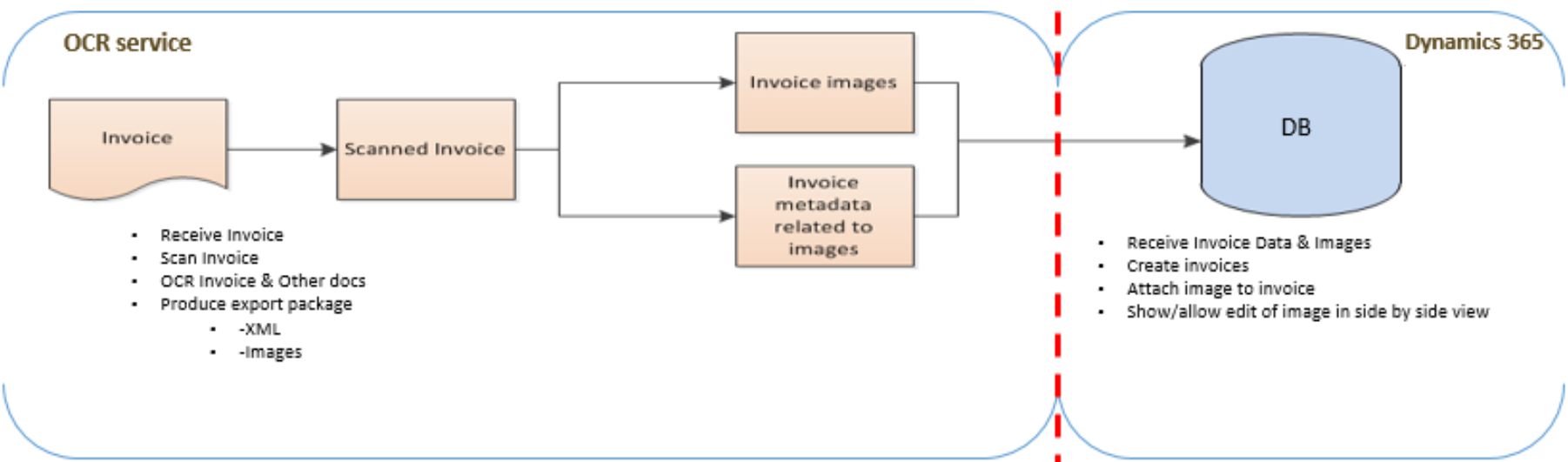
Pic. 1 – Integration scenario sample
Anna – account payable clerk in Enterprise. Her responsibility is processing of incoming invoices. Anna’s working day begins with the opening of the Vendor invoice automation workspace. Here she can estimate the scope of work for current day.
For example, today she sees that there are 34 invoices awaiting processing, among which 11 are assigned to her which means that they require her approval. However, she also notices that there are invoices not imported successfully as well as invoices for which manual matching is required. To solve the exceptional invoices first Anna opens the Manual receipt match needed tile.
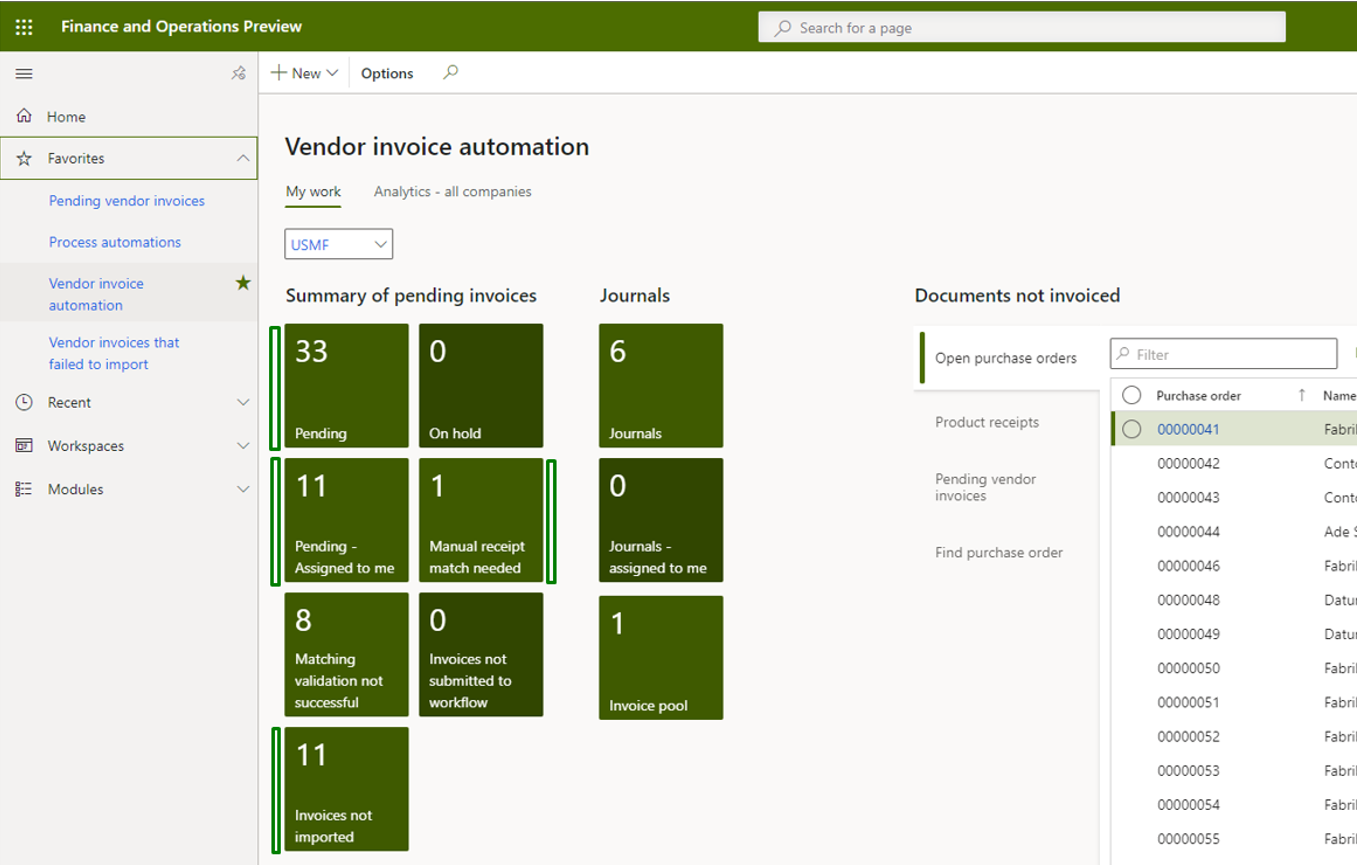
Pic. 2 – Vendor invoice automation workspace
Here she sees one invoice with Match status = Failed. To make sure that the supplier provides the correct invoices, the company uses the “Three-way Matching” (to know more about Three-way matching D365FO use Three-way matching policies – Finance | Dynamics 365 | Microsoft Docs). To view the invoice details Anna opens the View automation history and sees that after a successful import the system was not able to match the product receipt lines with the invoice lines.
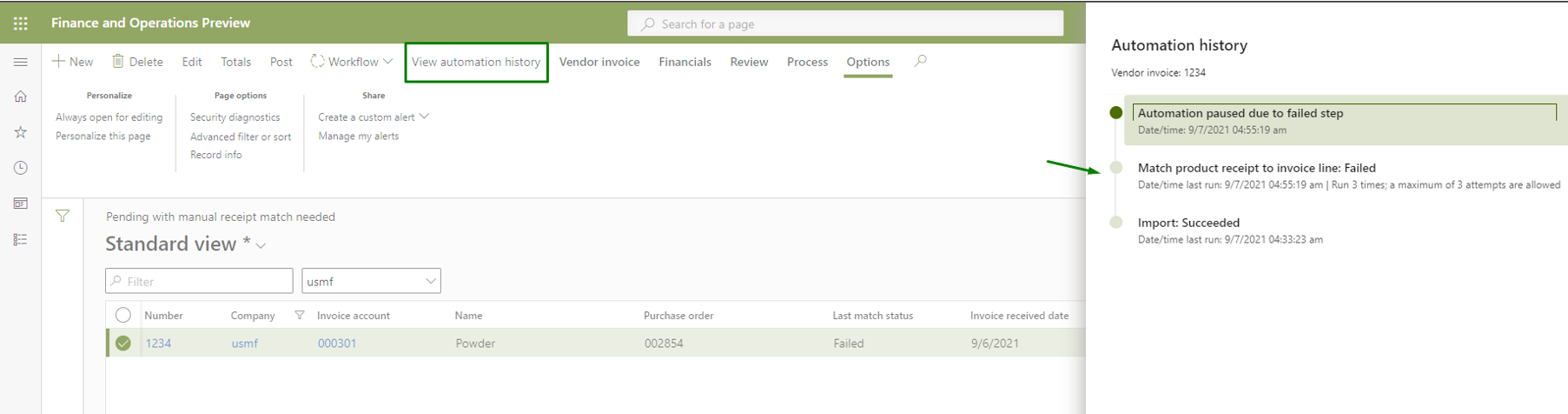
Pic. 3 – Invoice automation history view
Anna opens the invoice. On the left, she sees the invoice automatically created in the system, on the right – the invoice document sent by the supplier. Firstly, Anna checks whether the system has correctly recognized the invoice data based on the PDF document. She verifies supplier, order number, order lines – quantity and amount. After Anna has ensured that the system has recognized invoice data correctly, she clicks Matching details to check the matching history.
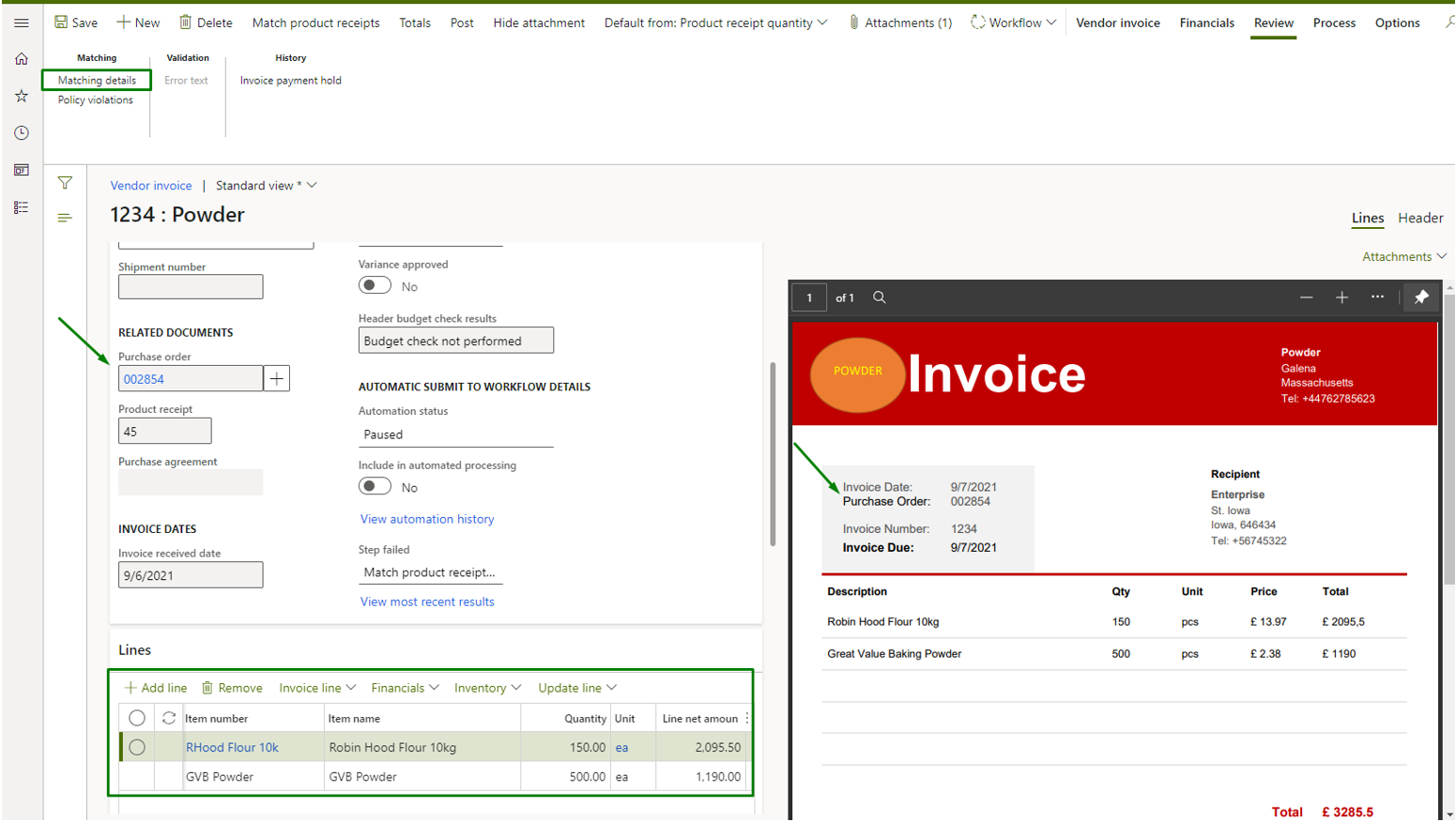
Pic. 4 – Vendor invoice side by side view (revision)
In the Invoice matching details, you can see that the first line did not go through the matching procedure and that the difference is 419.10$, while only 1$ is allowed. Anna notices that only 120 pieces were received while 150 is indicated in the invoice.
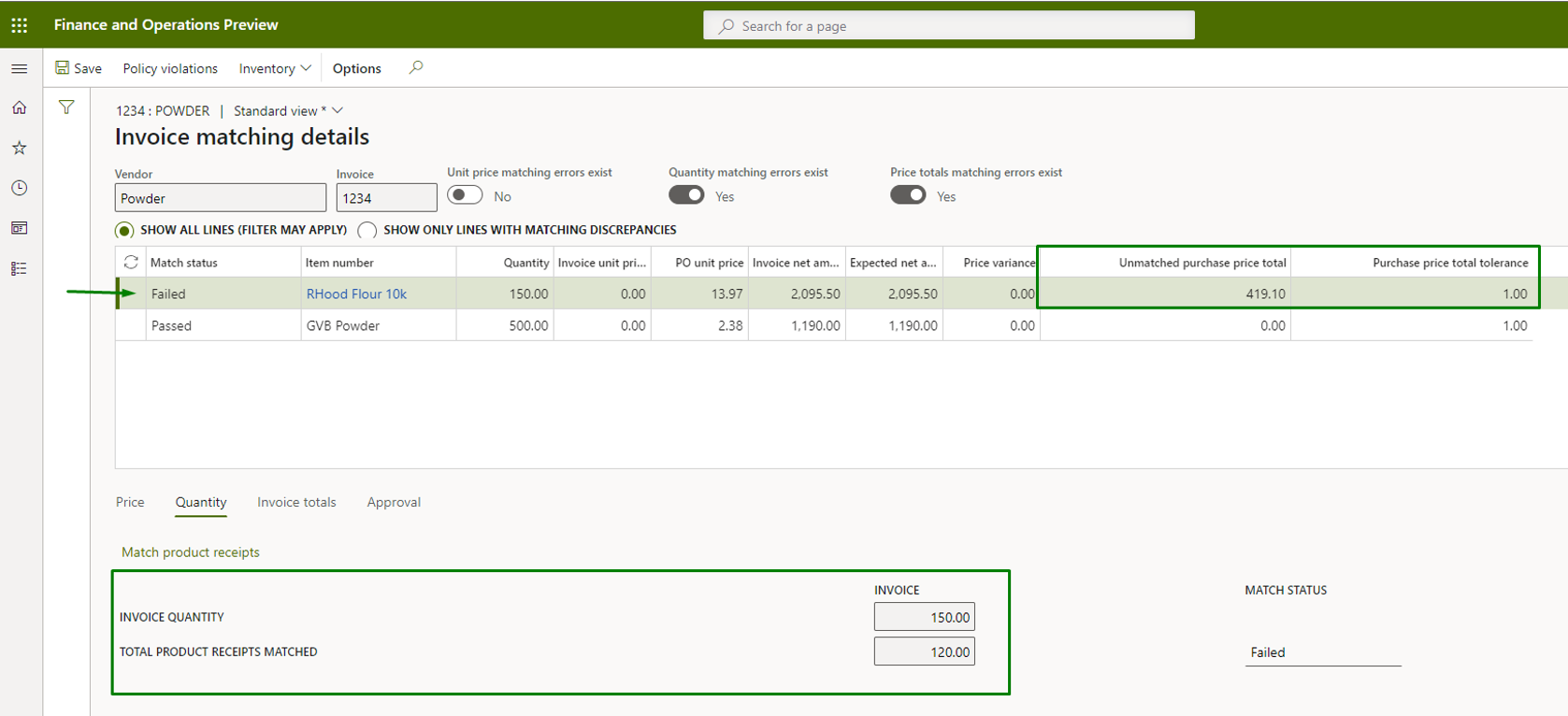
Pic. 5 – Invoice matching details view
Anna contacts the purchasing manager to clarify the details. It turned out that the warehouse employee made a mistake and indicated the quantity less than the quantity of the received goods in the product receipt document. After receipt corrections had been done, Anna matched the invoice line with a new product receipt for the remaining quantity.
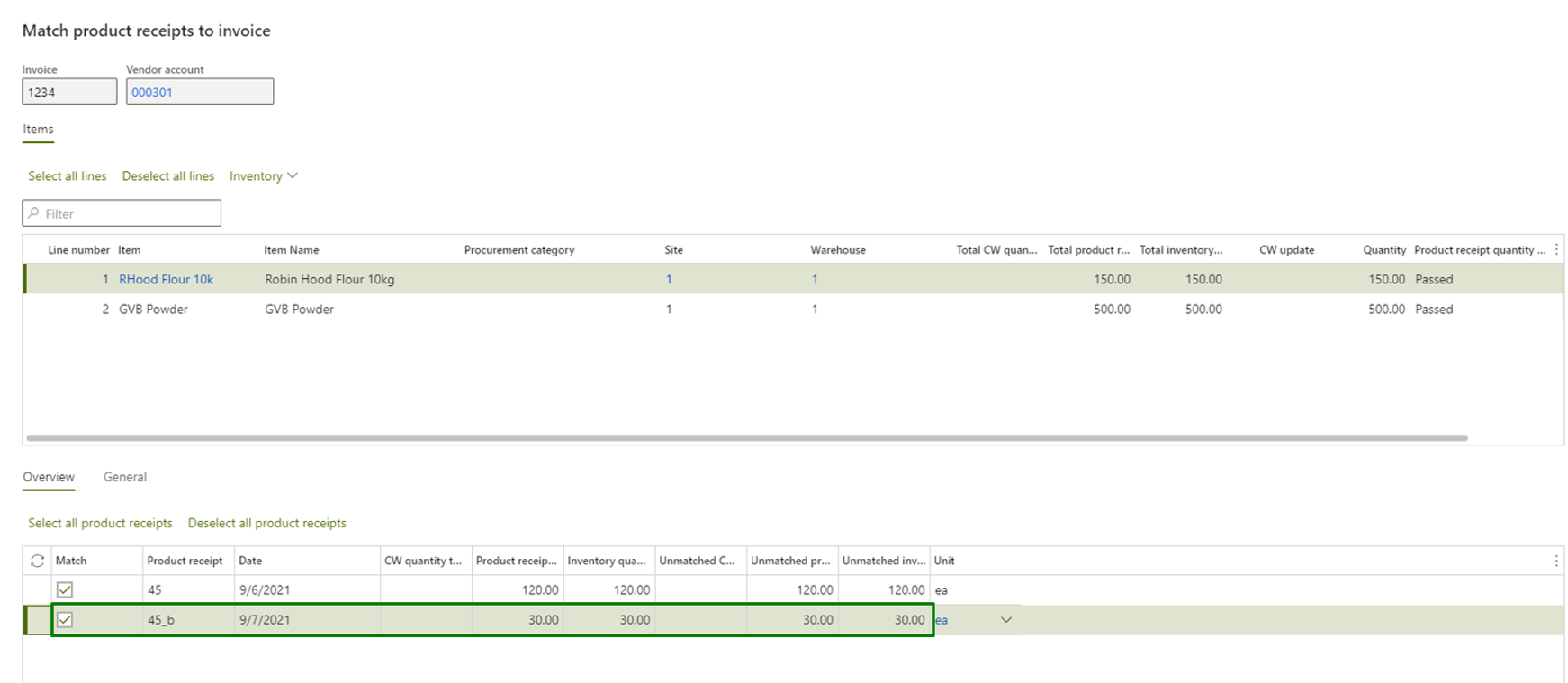
Pic. 6 – Matching invoice lines to receipt lines
Now the Match status for the invoice is Passed and the first invoice line is linked to multiple product receipts.
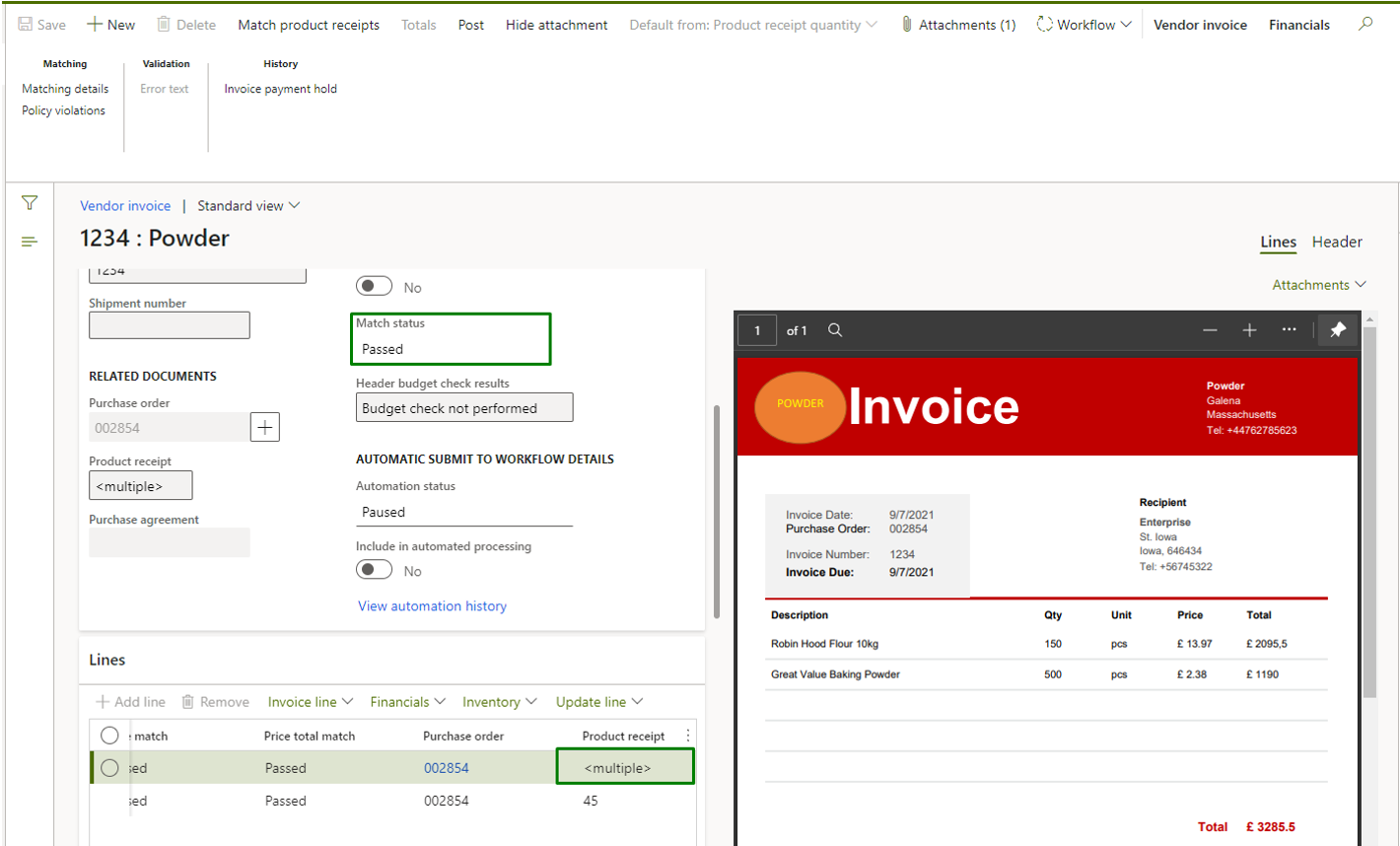
Pic. 7 – Vendor invoice side by side view (revision after matching)
Then Anna opens Invoices not imported tile (pic. 2). She notices that the supplier was not found in the system. Anna creates a Pending invoice.
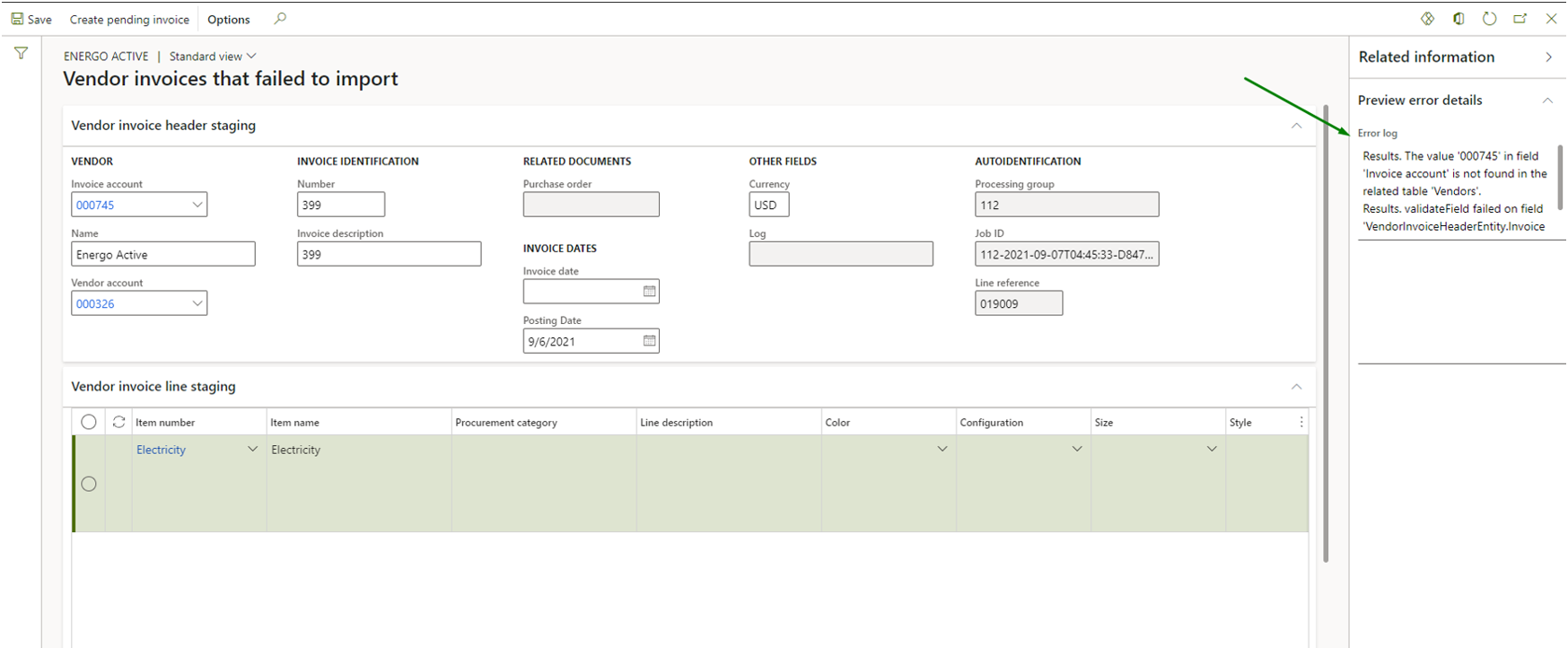
Pic. 8 – Vendor invoices that failed to import view
She sees that the given invoice is for electricity services. Enterprise does not create purchase orders for electricity. Instead, it registers invoices upon it`s consumption. Therefore, the purchase order for the invoice was not found. Anna knows that Enterprise has changed its electricity supplier since last month, so most likely the supplier card has not yet been created – which is the reason for the unsuccessful import of the invoice. Anna creates a supplier card, fills out the Invoice account on the vendor invoice and confirms it.
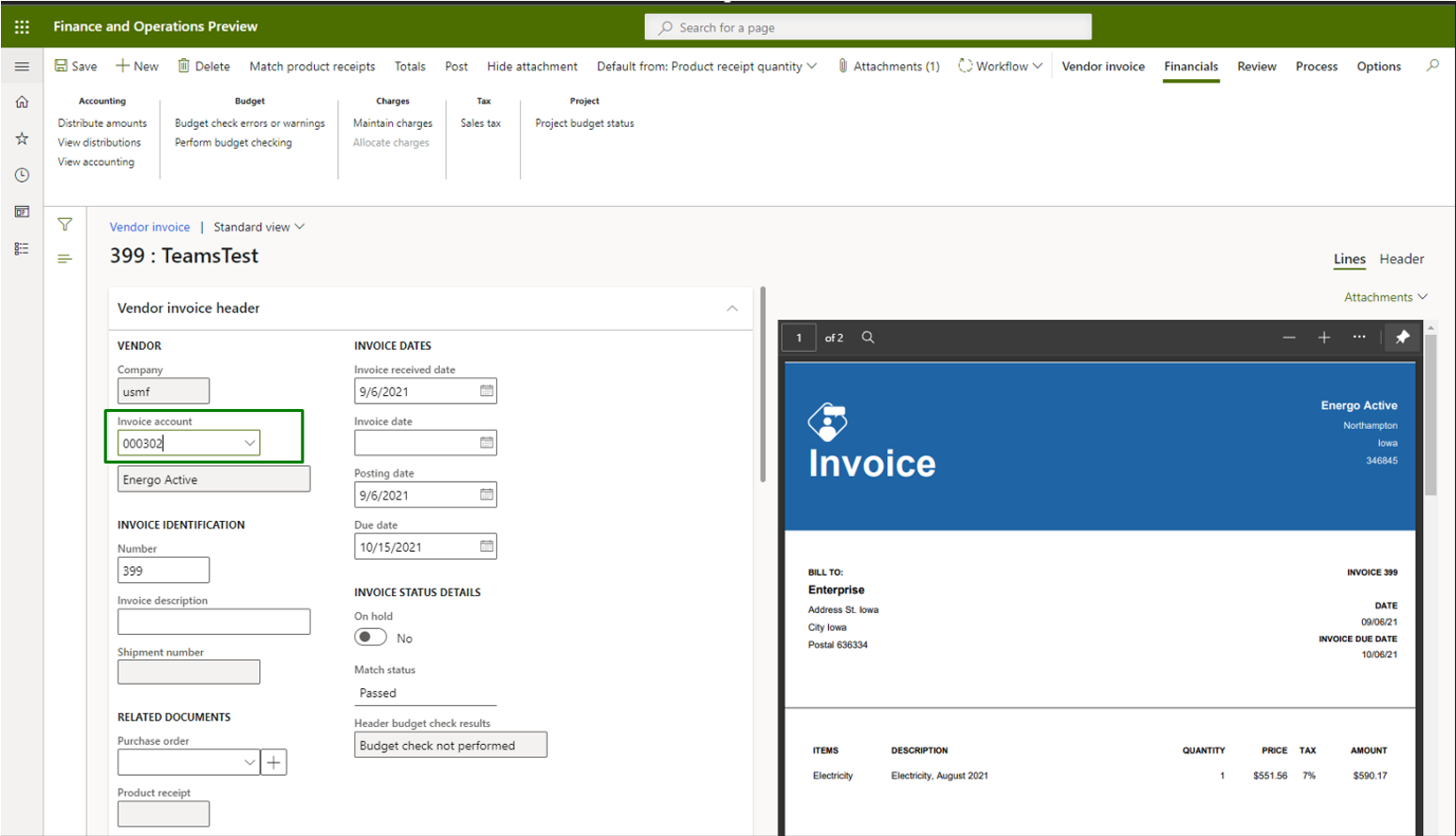
Pic. 9 – Vendor invoice side by side view (making changes)
After processing the problematic invoices, Anna opens the Assigned to me tile (pic. 2). Here she sees all the invoices that are assigned to her according to the approval process. Anna opens the first invoice. After reviewing she can approve, reject, or request changes to the document. Anna approves the invoice, and the system automatically posts the document. The posted invoices can be viewed by clicking Open vendor invoices on Vendor invoice automation workspace.
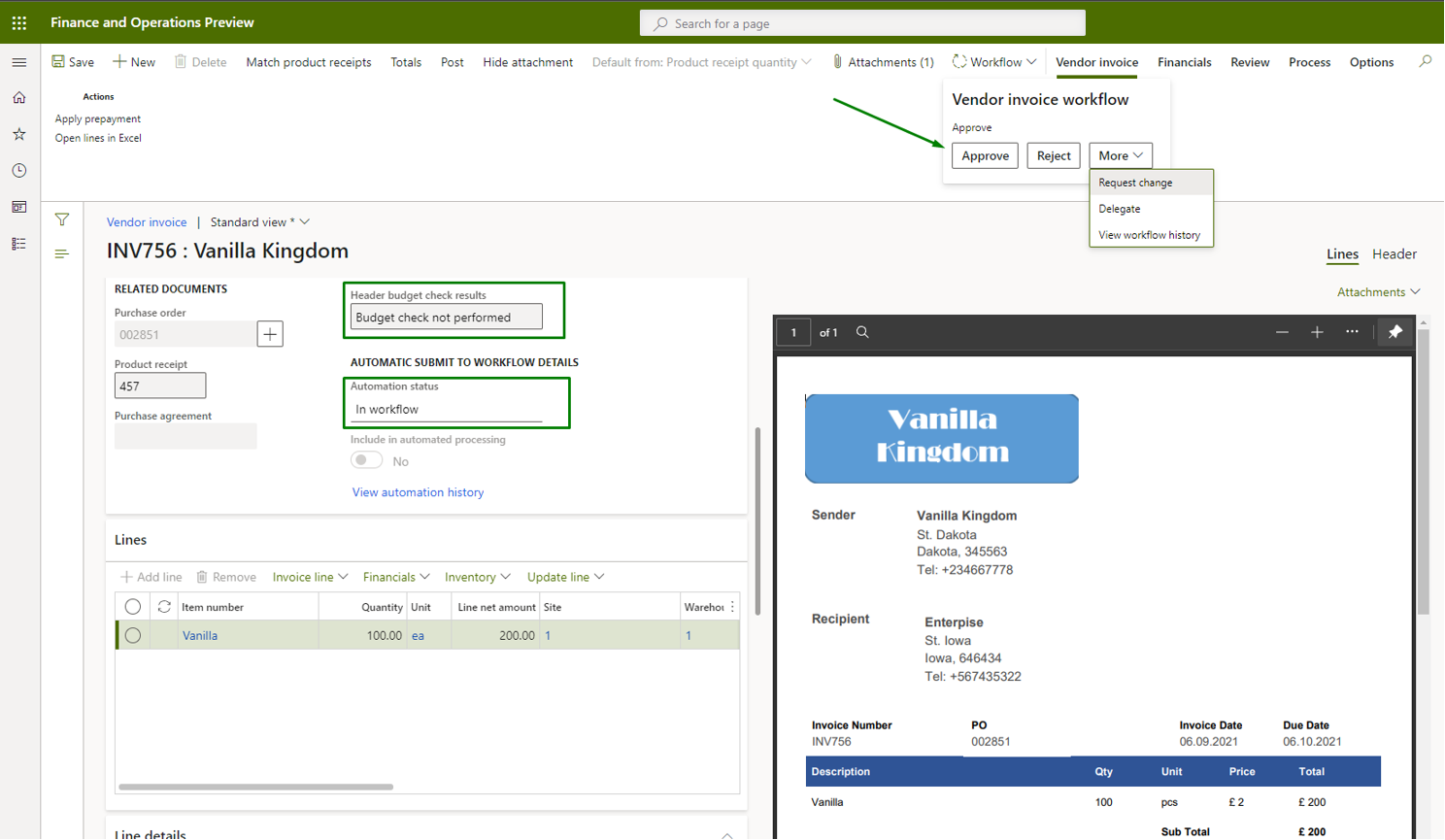
Pic. 10 – Vendor invoice side by side view (approval)
Using embedded Vendor invoice automation, you can visually see the status of current work. For example, on the Workflow status you can see how much invoices are in a process and who should take actions upon them.
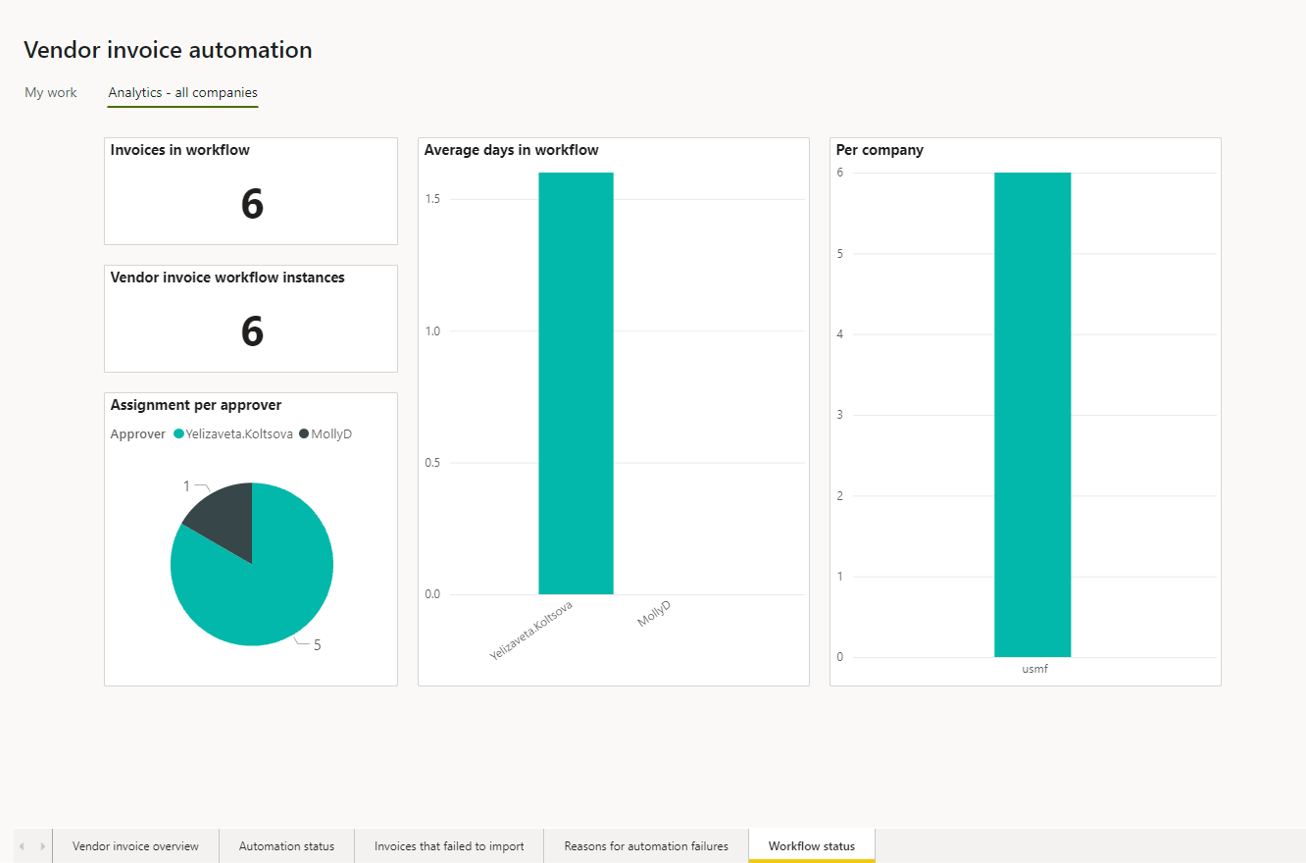
Pic. 11 – Vendor invoice automation analytics (workflow status)
Also, you can analyze the reasons of failures. This information will help you in process optimization.
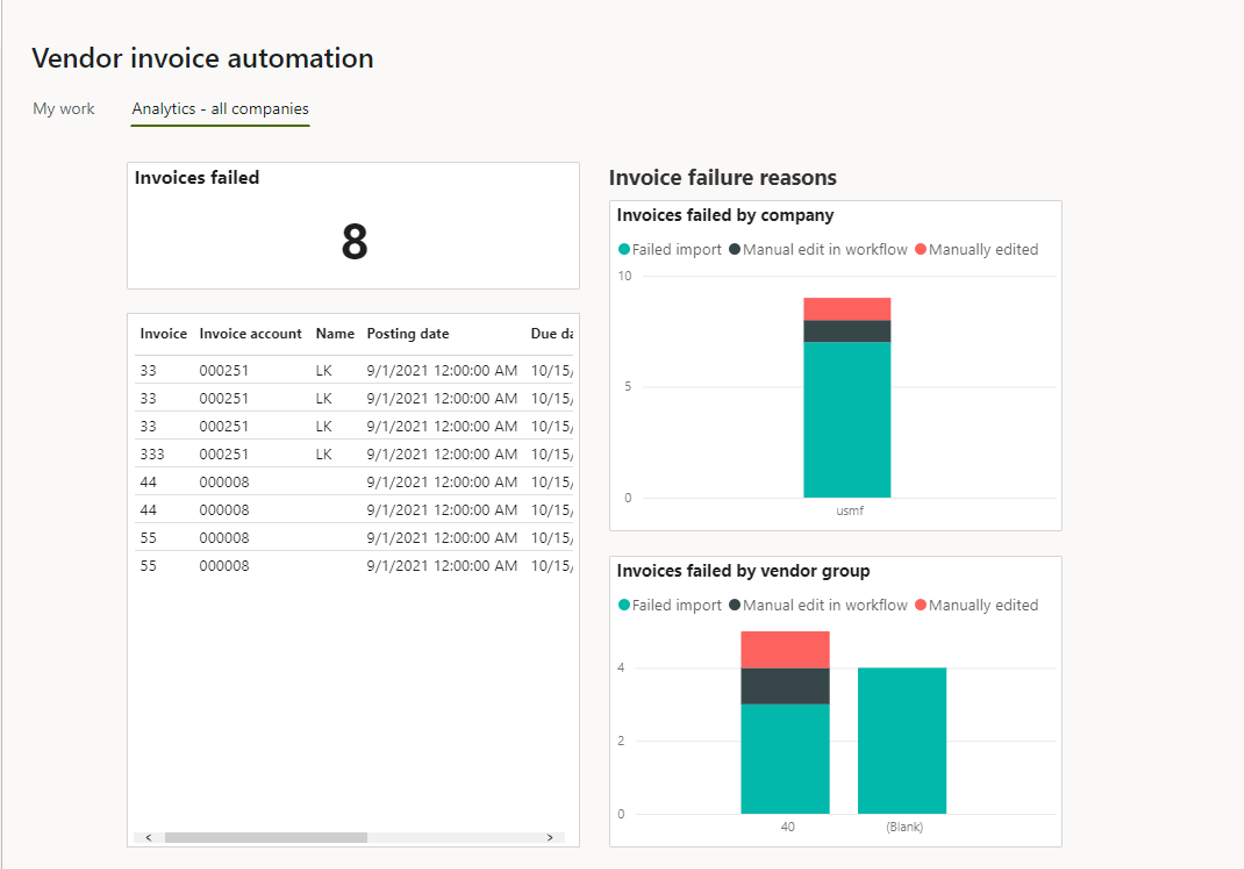
Pic. 12 – Vendor invoice automation analytics (invoices that failed to import)
I hope this article has clarified the benefits of the functionality and possibly provided some ideas on how to make your company’s incoming invoice processing more flexible and faster.
Article was prepared by: