


A dispatcher opens the schedule assistant for an urgent repair and gets one option: a certified technician two hours away. A colleague ten minutes from the site holds the same certification, but nobody linked it to his resource record, so the assistant never offered him. Field Service scheduling in Dynamics 365 works only as well as the resource, requirement, and booking data behind it. This guide covers what to model at implementation time, before any scheduling tool goes live.
Three scheduling paths, one data model
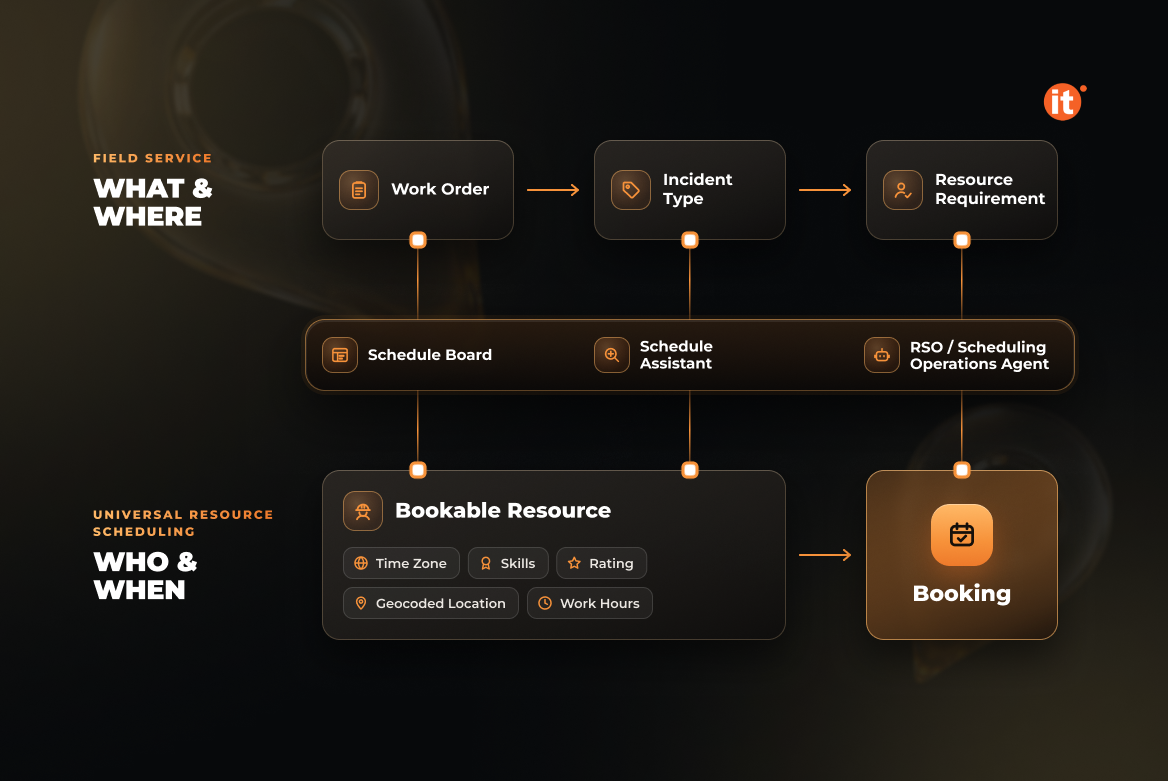
In Microsoft Dynamics 365 Field Service, scheduling is split between two layers. Field Service defines what needs to be done and where; Universal Resource Scheduling defines who can do the work and when. Every work order automatically produces a resource requirement, and the requirement is what gets booked to a technician.
Dispatchers have three ways to connect requirements to people. The schedule board handles manual booking and suits emergency work or jobs with limited complexity. The schedule assistant recommends times and resources for a single job, and the dispatcher picks one. For volume, the Resource Scheduling Optimization add-in schedules many jobs at once against ranked goals, while the Scheduling Operations Agent, currently in preview, optimizes one or more technicians’ schedules from the board or the Copilot side pane.
All three paths read the same records. Field Service scheduling quality is set by how resources, requirements, and booking rules are modeled — long before anyone chooses between manual and automated booking.
Requirements: what the work order hands to the scheduler
A requirement inherits its name, location, duration, and other attributes from the work order, and later work order updates flow through to it. Duration needs particular attention. If a work order has no service task or incident type, it gets the default booking duration, and the requirement doesn’t inherit that value into its own Duration field. Incident types act as work order templates, so configuring them with realistic durations is scheduling work, not catalog housekeeping.
Territory is the second early decision. A resource can belong to several territories, but a requirement maps to exactly one. How you divide your service area — by city, region, or branch — shapes which resources the optimizer and the agent will consider for each job. Settle that model before configuring resources, because every resource record and every requirement points to it.
Resources: time zones, locations, skills, and territories
Bookable resources carry the fields the scheduling tools calculate against. Each has its own Time Zone, and its Start Location and End Location tell the system where the working day begins and ends. Choose Location agnostic, and travel time to the first booking and from the last one is not calculated at all. Routing, travel estimates, and the map view also depend on valid geocoded addresses.
Work hours decide availability. The schedule assistant returns only resources with capacity inside their work hours and skips any resource with Enable for Availability Search set to No. Capacity defaults to 1; setting it to 0 removes the resource from availability searches.
Skills sit on the same record. Characteristics come in two types: a Skill, rated against a rating model, and a Certification, a credential the resource has earned. Work orders list the characteristics a job needs, and dispatchers match them against what each technician holds. Enhanced characteristics, in preview, add issue and expiration dates to a certification. Territory assignments complete the profile.
Booking statuses and priorities: the rules automation obeys
Automated scheduling adds rules that manual booking never needed. For the Scheduling Operations Agent, each booking status carries an Optimization Method, set out in the Scheduling Operations Agent setup documentation. Optimize lets the agent move or delete bookings in that status, Do Not Move preserves the arrival time, and Ignore lets the agent book over it — Microsoft recommends it for canceled bookings. Leave the field empty and the agent treats every booking in that status as Do Not Move, so unconfigured statuses leave it almost nothing to change.
Priorities need the same care. The agent reads a Priority Value from 1 to 100 and ignores the Level of Importance field. Microsoft advises distinguishable values within a narrow range: with Low at 1, Medium at 10, and Emergency at 100, emergency work lands in the result almost regardless of how inefficient the placement is.
The agent also needs location and map settings switched on, Display on schedule board set to Yes for each resource it should consider, and its two security roles assigned.
Sequencing the rollout
Microsoft’s guidance for Dynamics 365 Field Service is staged: manual scheduling on the board first, to establish business processes; then the schedule assistant; then Resource Scheduling Optimization, starting with single-resource optimization. Each stage puts the data in front of a dispatcher before an automated run depends on it.
The agent is changing fast. A public preview extended it to up to 5 resources from the schedule board and up to 30 through an optimization plan (Microsoft 365 Message Center, MC1392246, June 2026); recurring runs that apply schedules automatically followed on September 30, 2026 (MC1476008). Microsoft states that preview features are not meant for production use, so plan pilots accordingly.
Billing differs too. Resource Scheduling Optimization is priced by the number of resources optimized, while the Scheduling Operations Agent consumes Copilot Studio credits that grow with the resources in each request.
Finally, name an owner. Microsoft describes an emerging scheduling analyst role that owns optimization scope, goals, and parameters. In Field Service scheduling, those settings encode business priorities — someone has to decide them before the first automated run.
OntargIT implemented Dynamics 365 Field Service and Dynamics 365 Customer Service for KTS Engineering, a distributed-generation engineering company, automating field visit planning and service case handling. As a Microsoft Solutions Partner – AI Business Solutions, OntargIT has delivered 150+ projects for 140+ customers in 24 countries.
Conclusion
The scheduling tool you choose matters less than the records it reads. Before licensing Resource Scheduling Optimization or piloting the Scheduling Operations Agent, confirm that every resource has a time zone, a geocoded start location, and its real characteristics, and that every booking status and priority carries an explicit value. Build those checks into the configuration phase of your CRM implementation.